Every club pays people. The trainer gets an allowance per lesson, the volunteer behind the bar a monthly amount, the referee his travel costs. A gym often also has employees on a payroll and a few freelancers. At many clubs this lives in the treasurer's spreadsheet, with a folder of receipts next to it and a phone full of messages asking "how many hours did I do again?"
That works fine until it goes wrong once. A volunteer goes over the limit of the volunteer scheme, an amount is paid twice, or nobody remembers who approved something. That is why Grip op Sport has two modules that take over this work: Allowances and Payroll. In this blog I show how they work, with screens from a fictional demo club.

Two modules, one way of working
You can switch each module on or off separately, with its own permissions. They work the same way, so you only have to learn it once.
- Allowances is for allowances paid to volunteers and trainers. You record hours, fixed allowances, kilometres and costs, the system watches the limits of your country, and you pay out with a payment file for the bank.
- Payroll is for employees and freelancers: agreements, hours, leave, sickness and pay components. It is preparatory payroll. Grip op Sport does not calculate net pay and does not file payroll tax returns. You export the approved changes to your payroll software or your adviser.
In both you go through the same five steps, as tabs at the top of the screen: People, Hours and allowances, Periods, Pay out and Tasks. Each tab shows with a tick or a number whether anything is still open.
Setting up: a list you tick off
You start with the country and the currency. These are then fixed, because all limits, deadlines and payment formats depend on them. Then you fill in the organisation profile: legal form, whether you aim to make a profit or sport is the purpose, and your registration numbers. The profile determines which schemes apply to your club.
The start page is a list you work through: people, the scheme per person, the DPIA and data processing agreement, who may approve, the account you pay out from and My hours for the members. With Continue setup you go through it step by step.
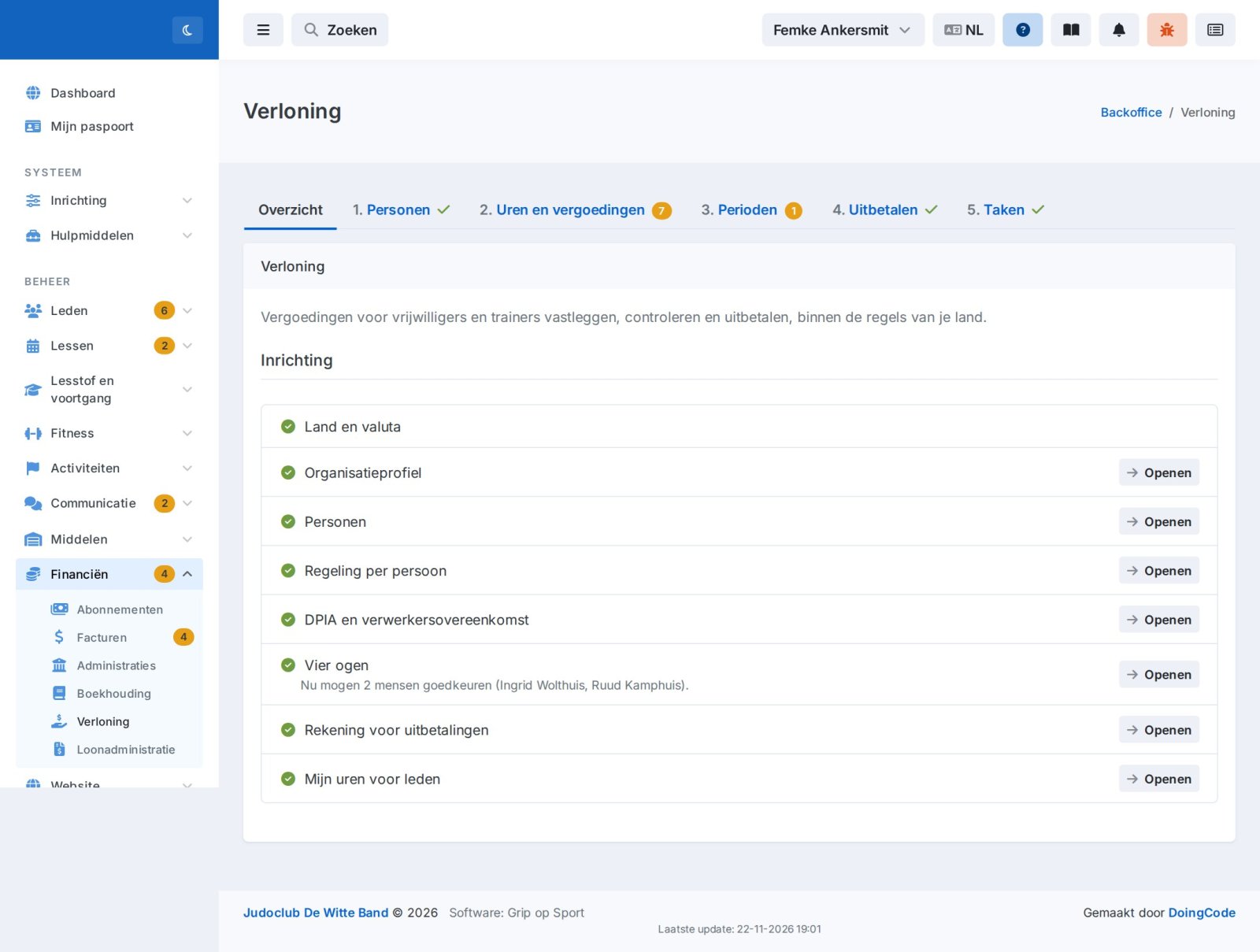
For the registration numbers the system checks what can be checked. A Dutch chamber of commerce (KvK) number must have eight digits, an RSIN or BSN passes the eleven test, and an IBAN has its check digits. For each field you see whether only the format is checked or the check digit too. If something is wrong, it says why the number is not correct.
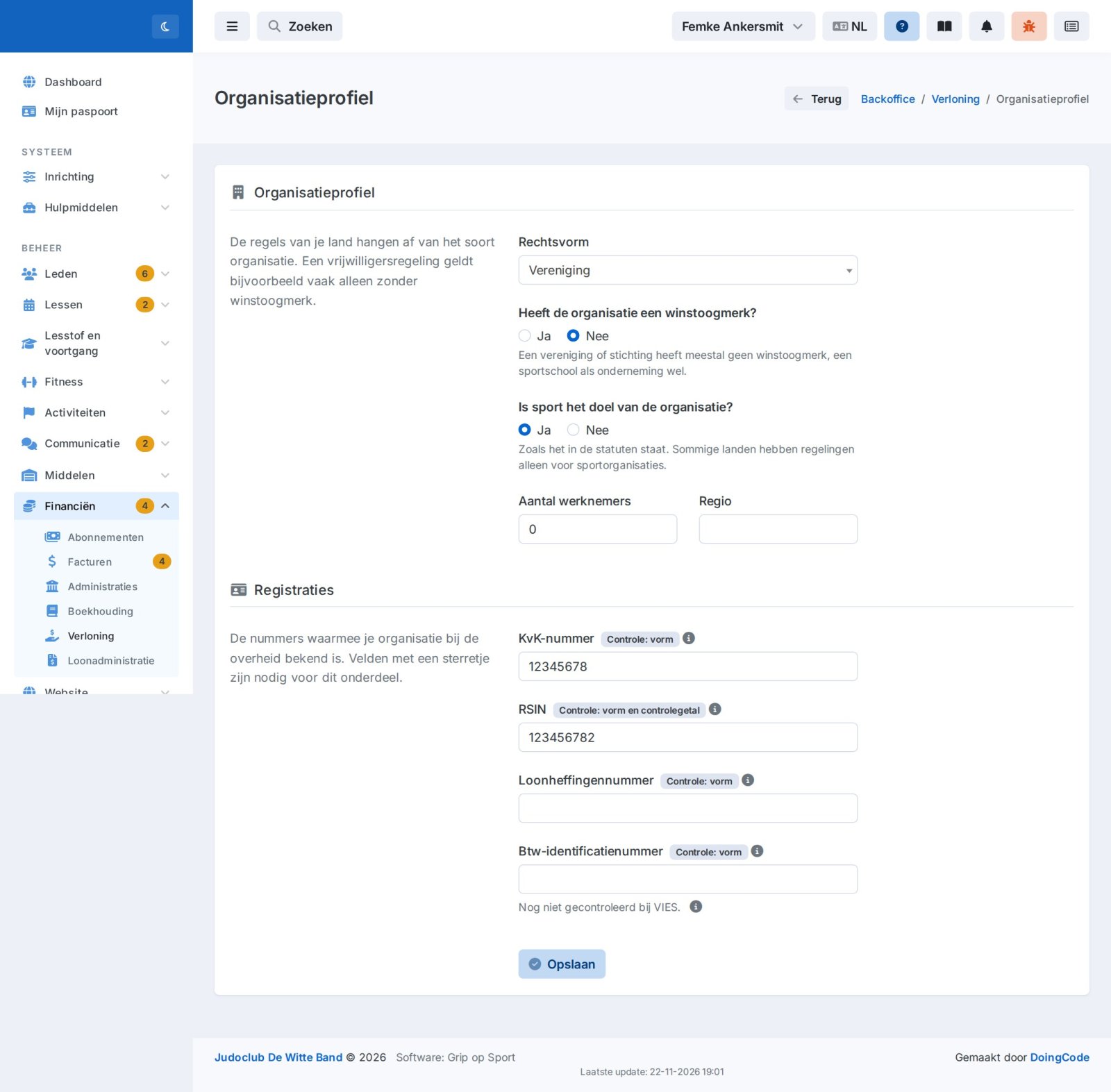
Who gets an allowance?
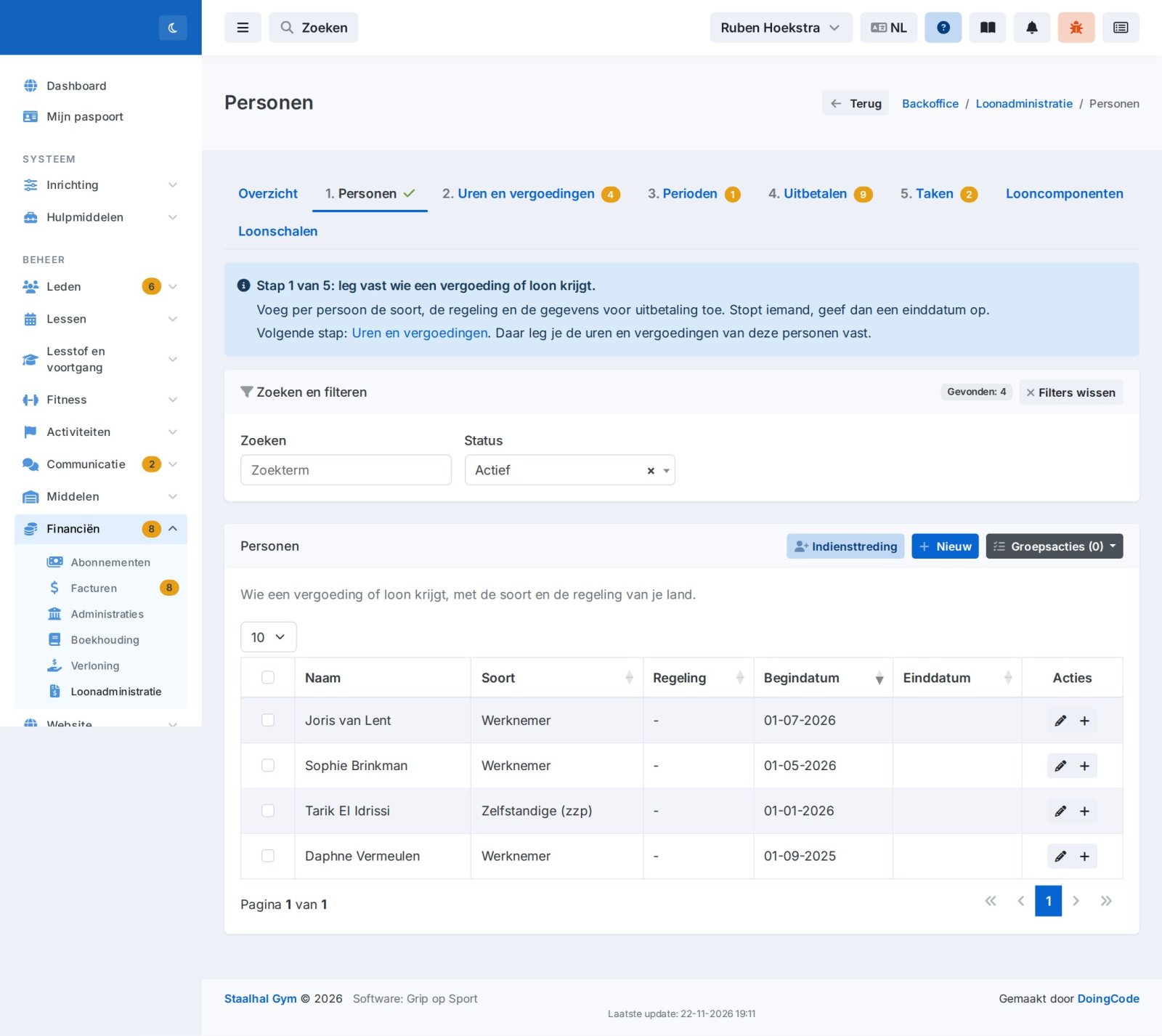
Under People you add the people who get an allowance, one by one or a whole group at once. For each person you choose the type (volunteer, sports allowance, employee, assignment and so on) and the scheme of your country. In the Netherlands, for most volunteers this is the volunteer scheme (vrijwilligersregeling). You record the hourly rate and the account the person receives the money on.
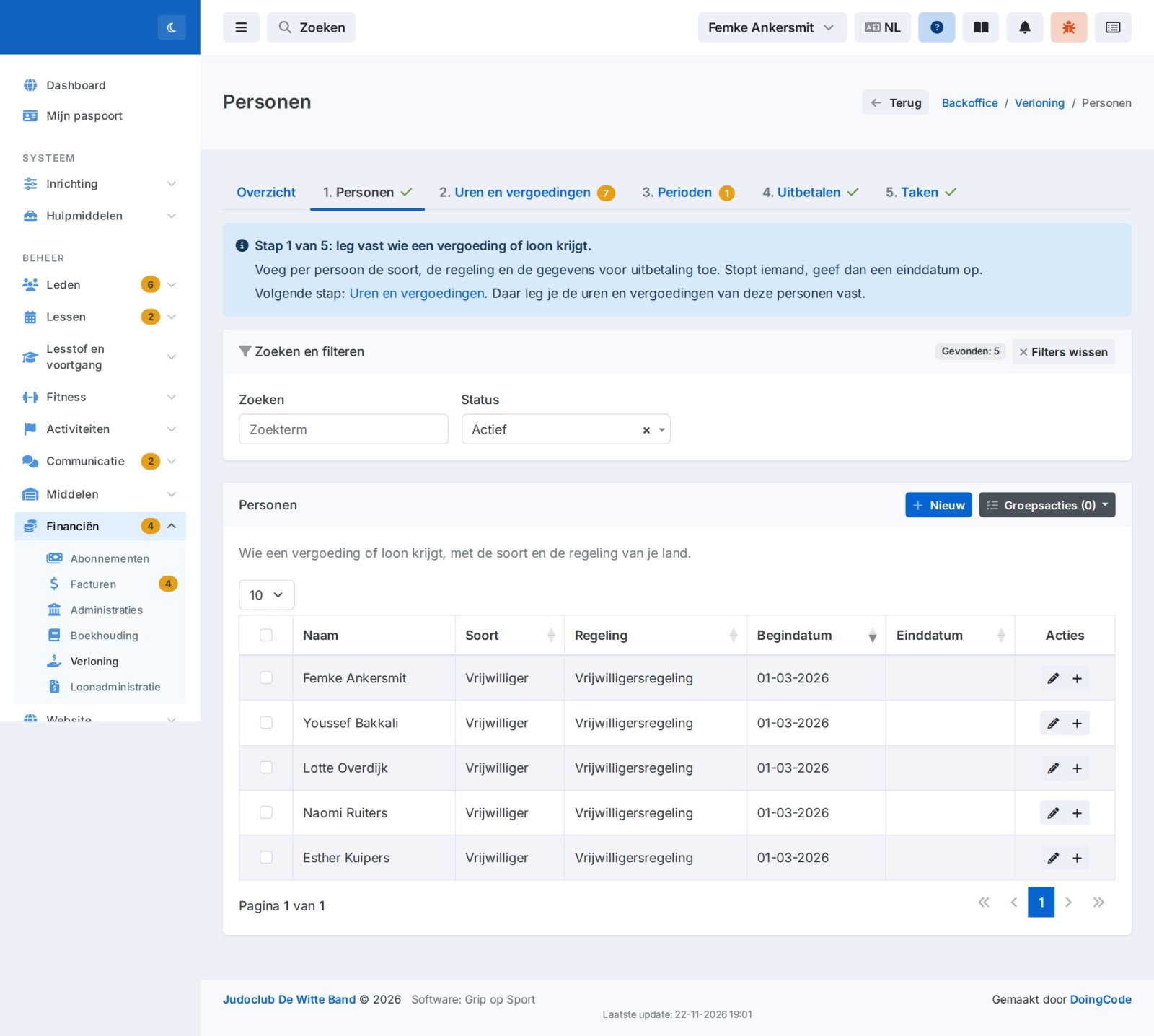
Recording hours and allowances, within the limit
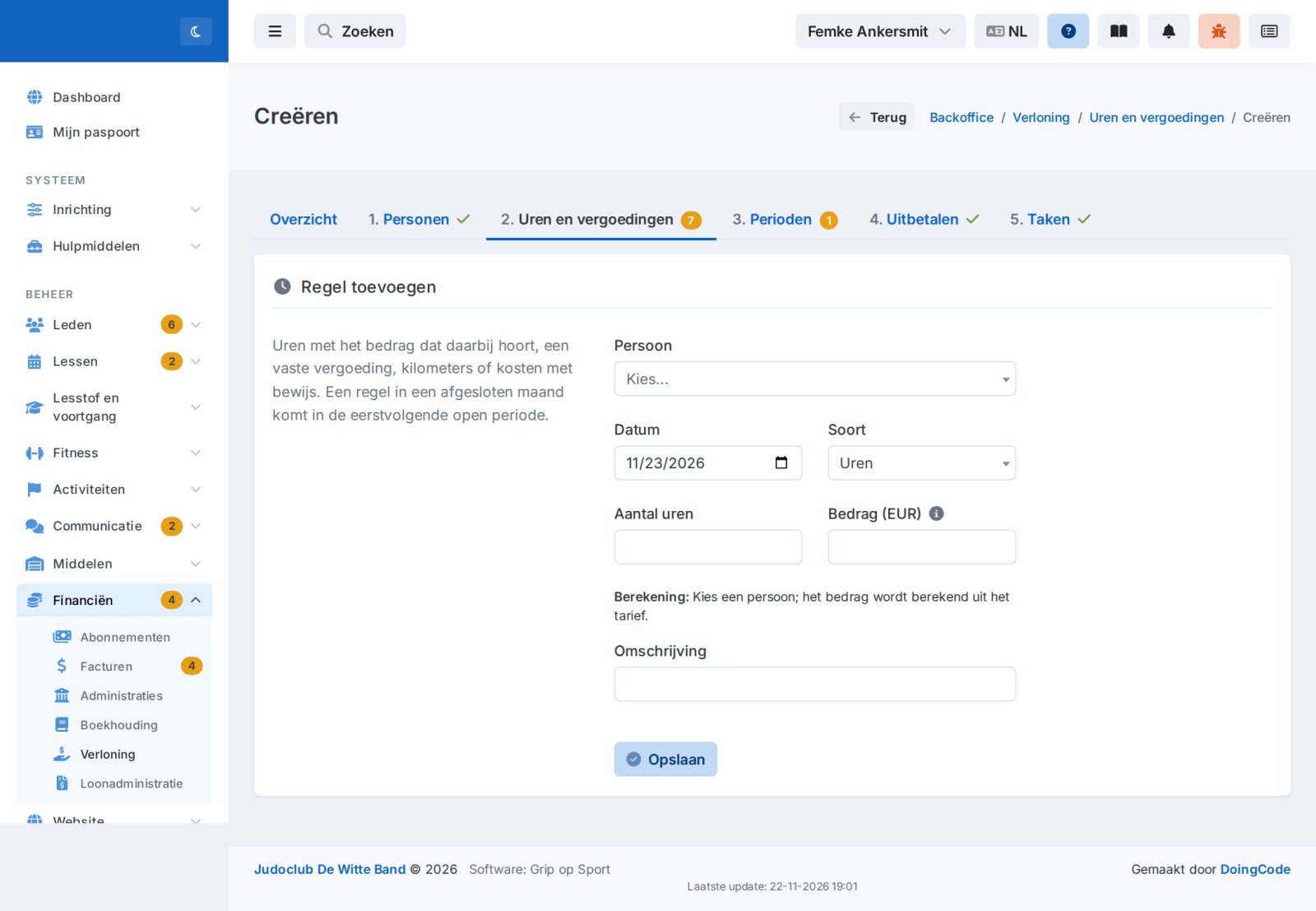
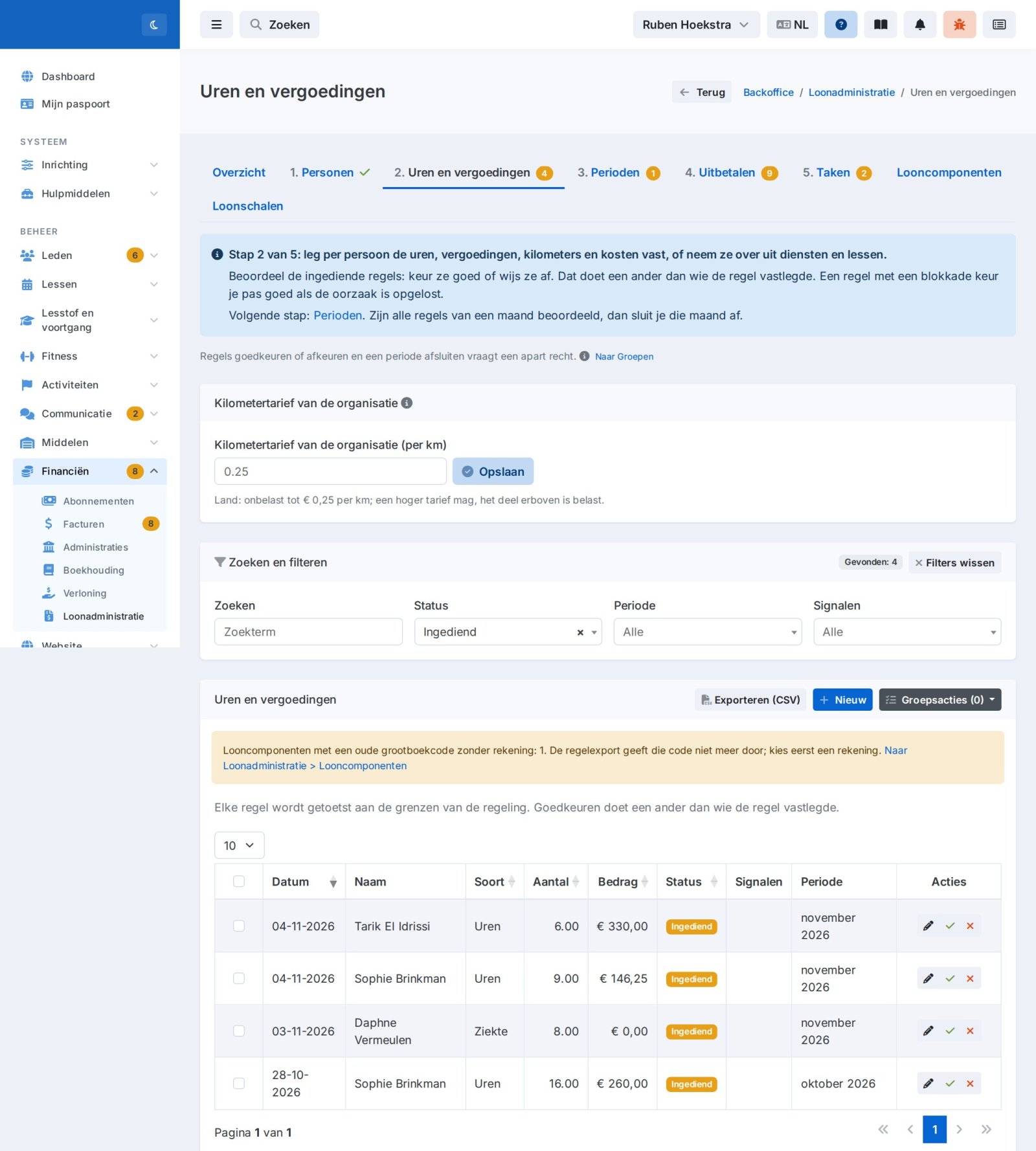
A line is a number of hours worked, a fixed allowance, a number of kilometres or an amount of costs. The system calculates the amount from the rate of the person, the club or the country. If you deviate from that, it asks for a reason, and whoever approves sees the calculated amount next to it.
The most important work happens while you type. Every line is checked against the limits of the scheme. For the Dutch volunteer scheme in 2026 these are 5.75 euros per hour from age 21, 3.40 euros per hour below that, 220 euros per month and 2,200 euros per year. If you get close to the limit, you see a warning. If you go over it, a block stops the line. If someone goes over the yearly limit, the scheme no longer applies for the whole year, and the system says so in advance instead of afterwards.
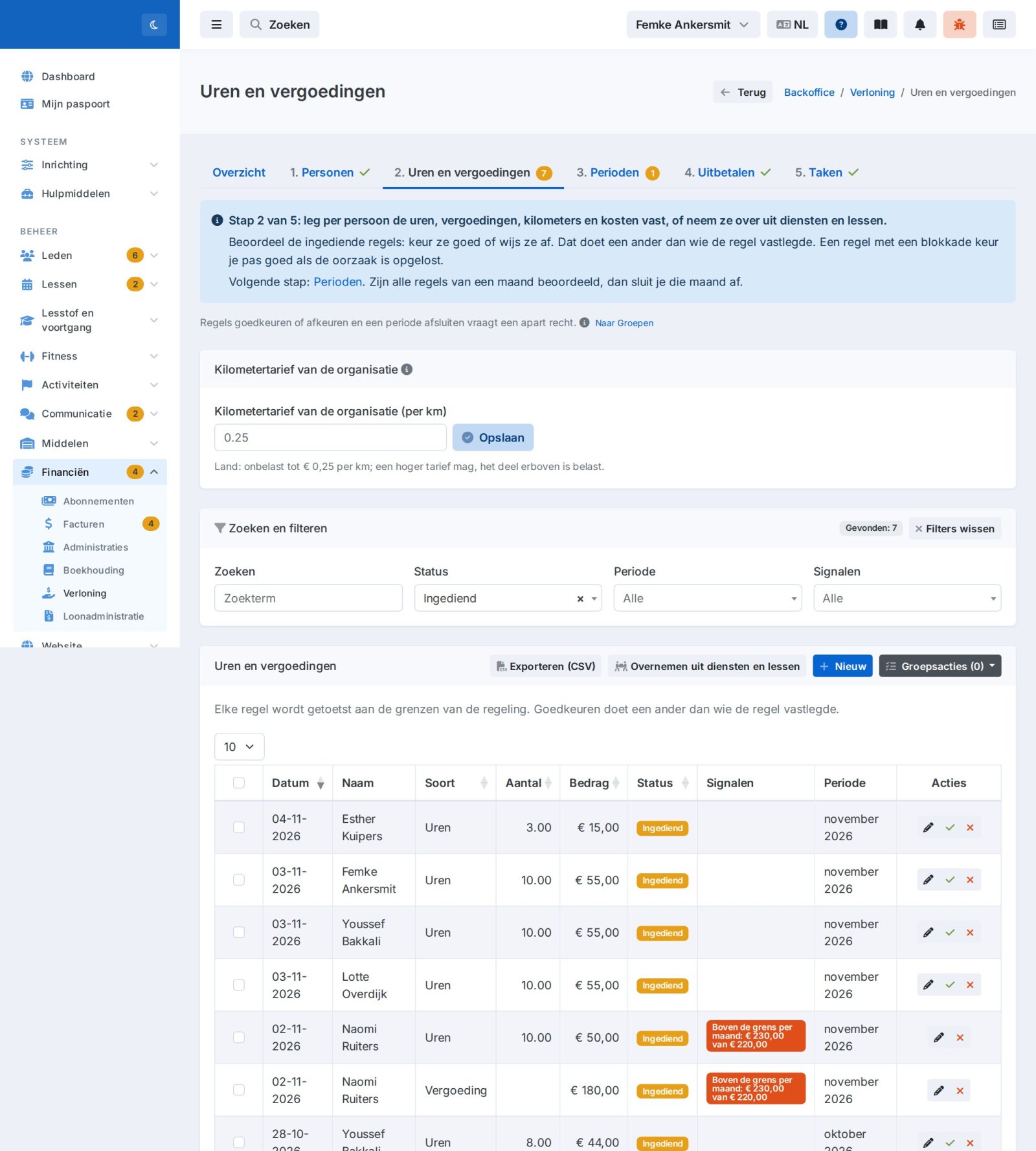
If a date falls in a month that has already been closed, the line goes into the next open month. The date of the work stays as it is, so you can still see later when the work was really done.
Trainers and volunteers submit their own
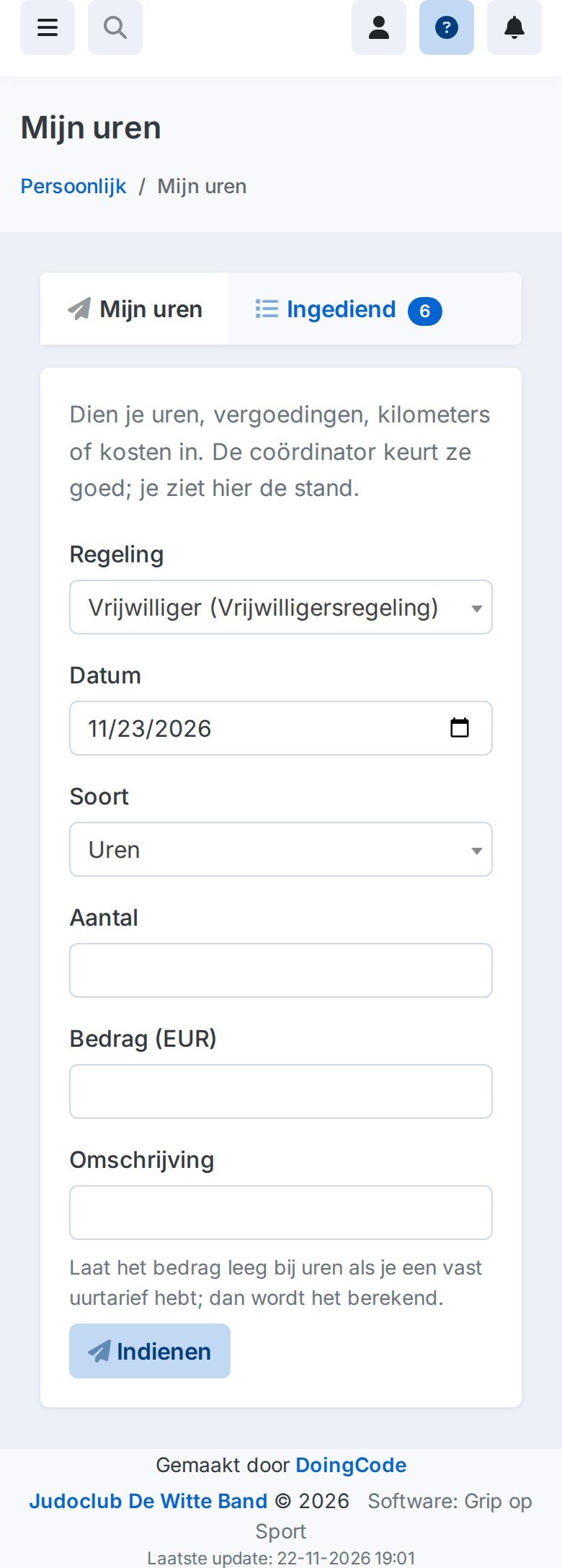
The treasurer does not have to retype everything. Under My hours a trainer or volunteer submits hours, allowances, kilometres or costs themselves. An expense claim is simply a line with costs. As long as a line has not been reviewed, the person can withdraw it. They can never approve it themselves.
This works on the website and in the members app, under My club > My hours. Reviewing is only possible on the website.
Four eyes at every step
Whoever records or changes a line does not approve it. Someone else always does that. During setup you choose who may approve, and the system requires at least two, so the work does not stop when one of them is on holiday.
This principle runs all the way to the end. If someone changes a date, number or amount after approval, the approval lapses and someone else has to look again. Whoever puts a payout together does not approve it. Whoever changes an account number does not approve the payout with that number. And whoever wants to cancel a payout must be someone other than whoever approved it. This way nobody can have money transferred on their own.
Periods: closing a month
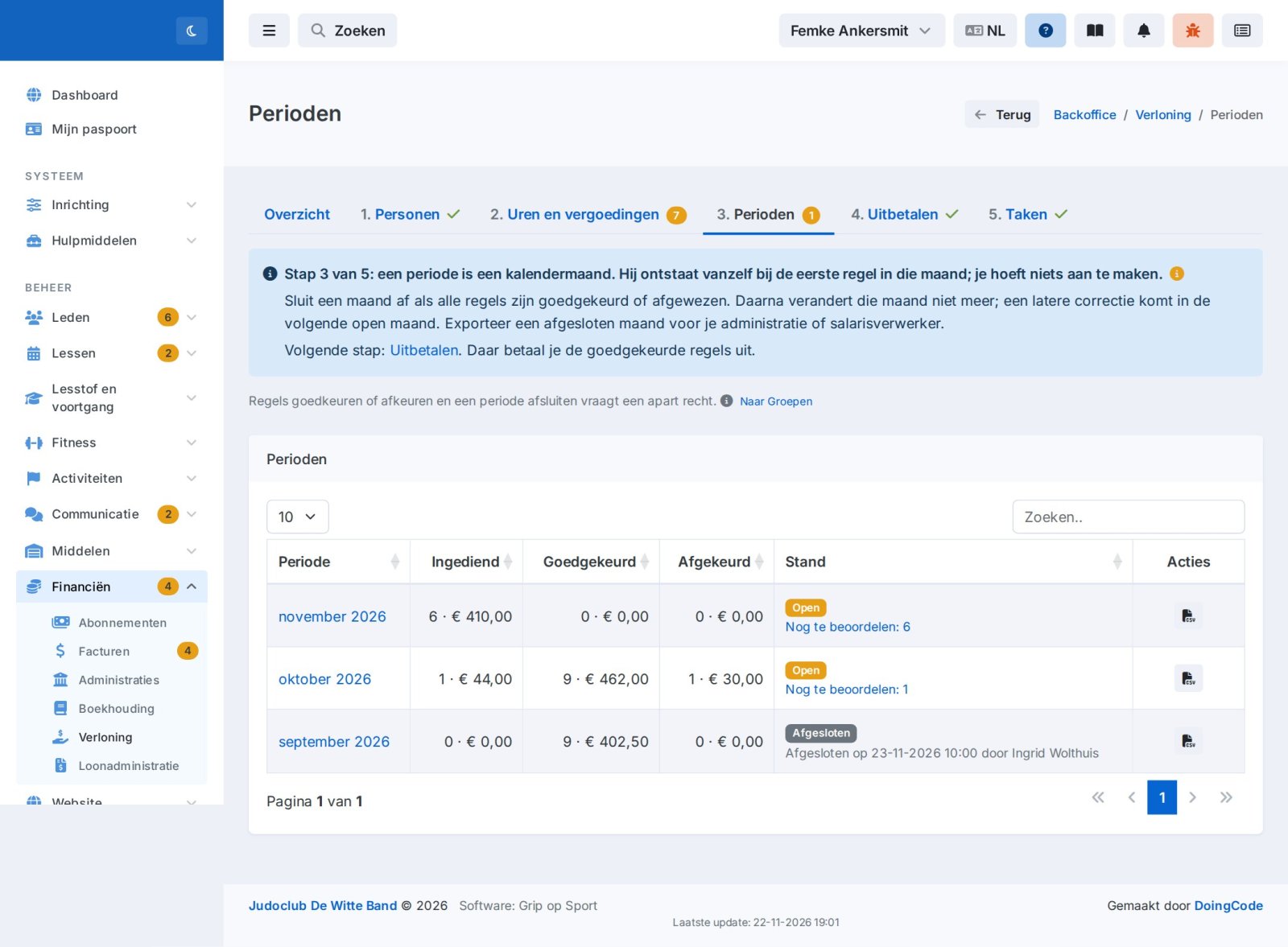
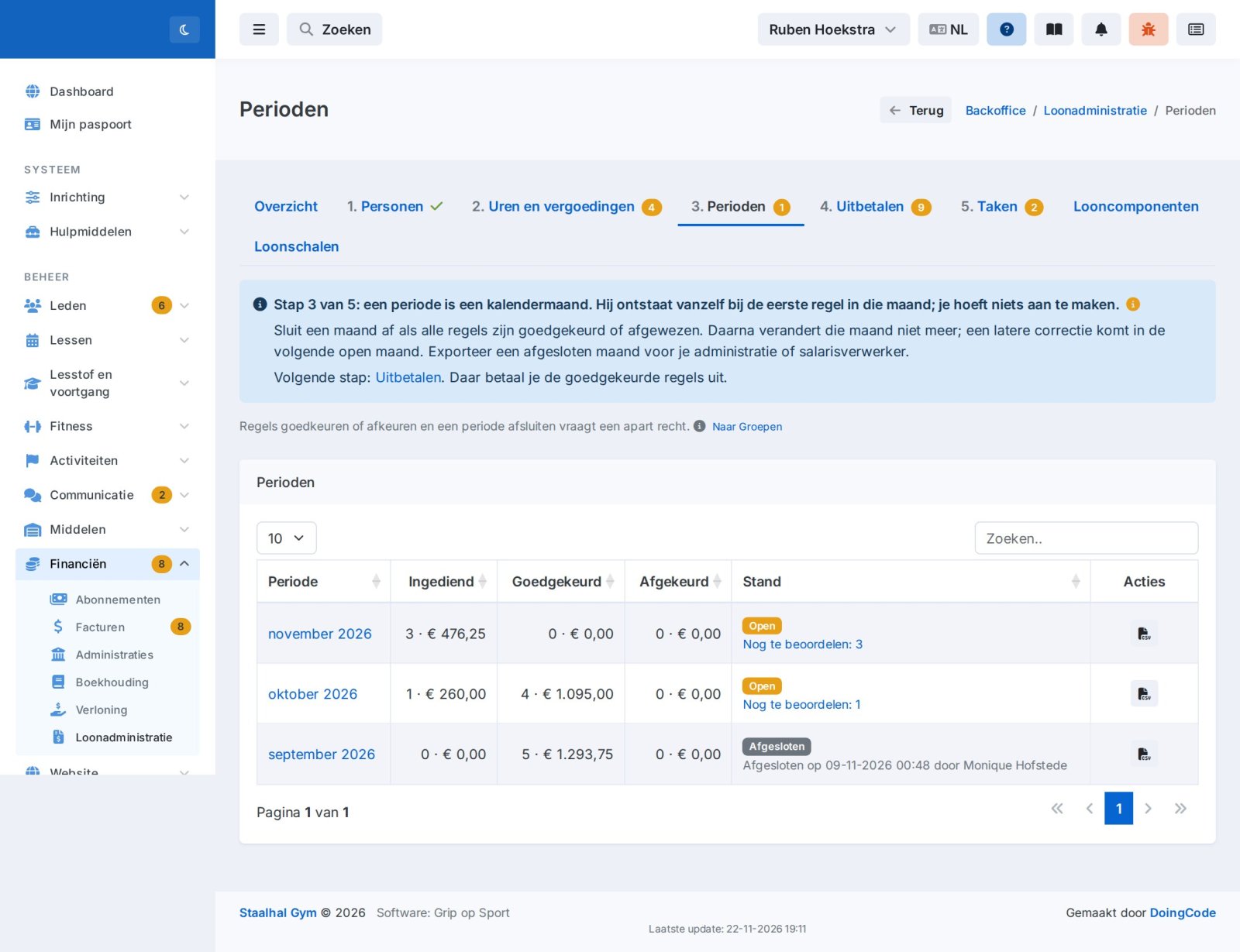
A period is a calendar month. It is created automatically with the first line in that month. For each month you see how many lines have been submitted, approved and rejected, with the amounts. Once everything has been reviewed, you close the month. This records who did it and when, and it cannot be undone. A correction goes in as a new line in the next month, so that what you exported or paid out earlier stays correct.
Paying out with a payment file for the bank
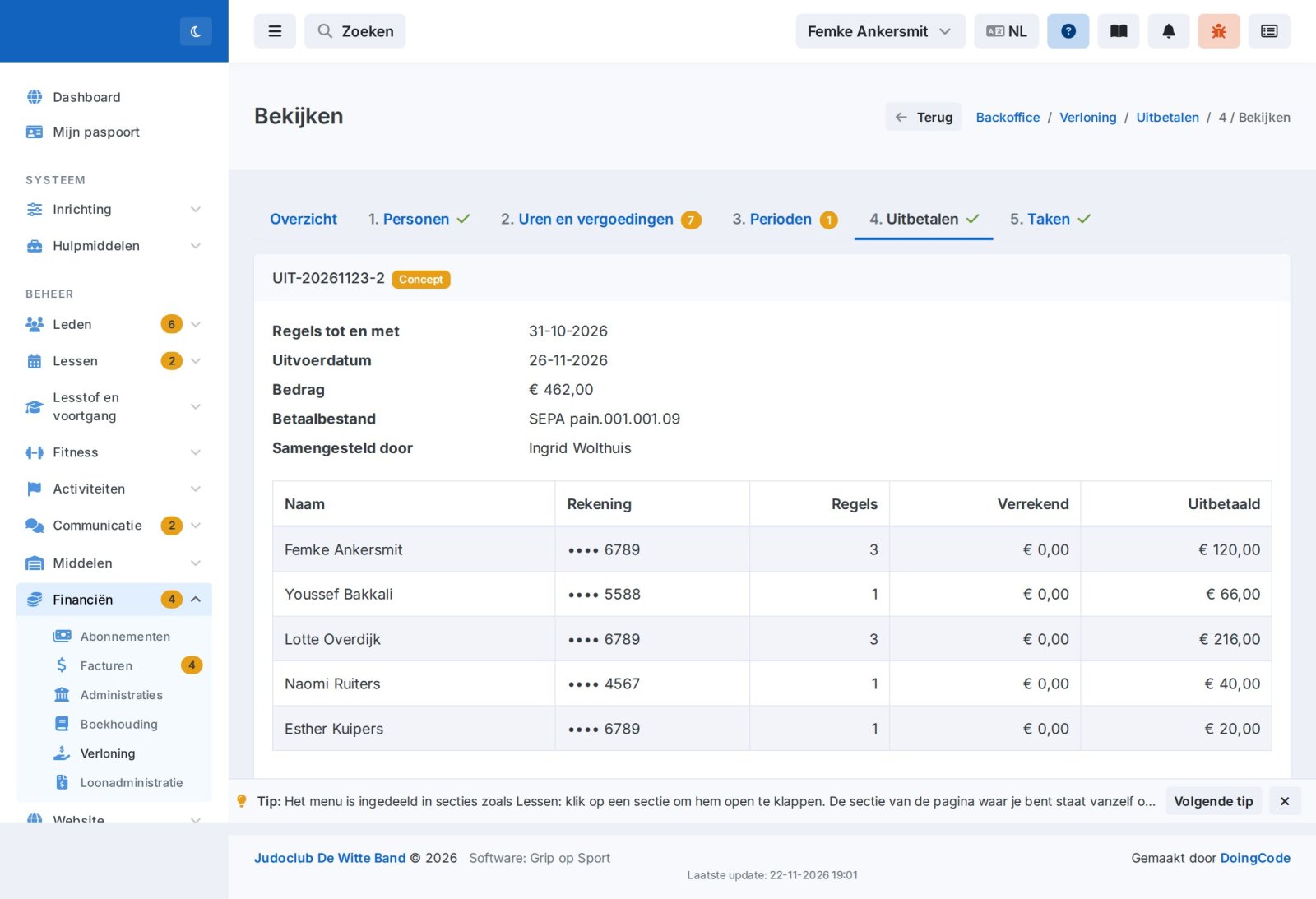
A payout bundles the approved lines per person into one payment. You choose the date up to which lines are included and the day the bank should pay. A second person approves the payout, and only then does the system create the payment file. You upload that file at your bank, and afterwards you mark the payout as paid.
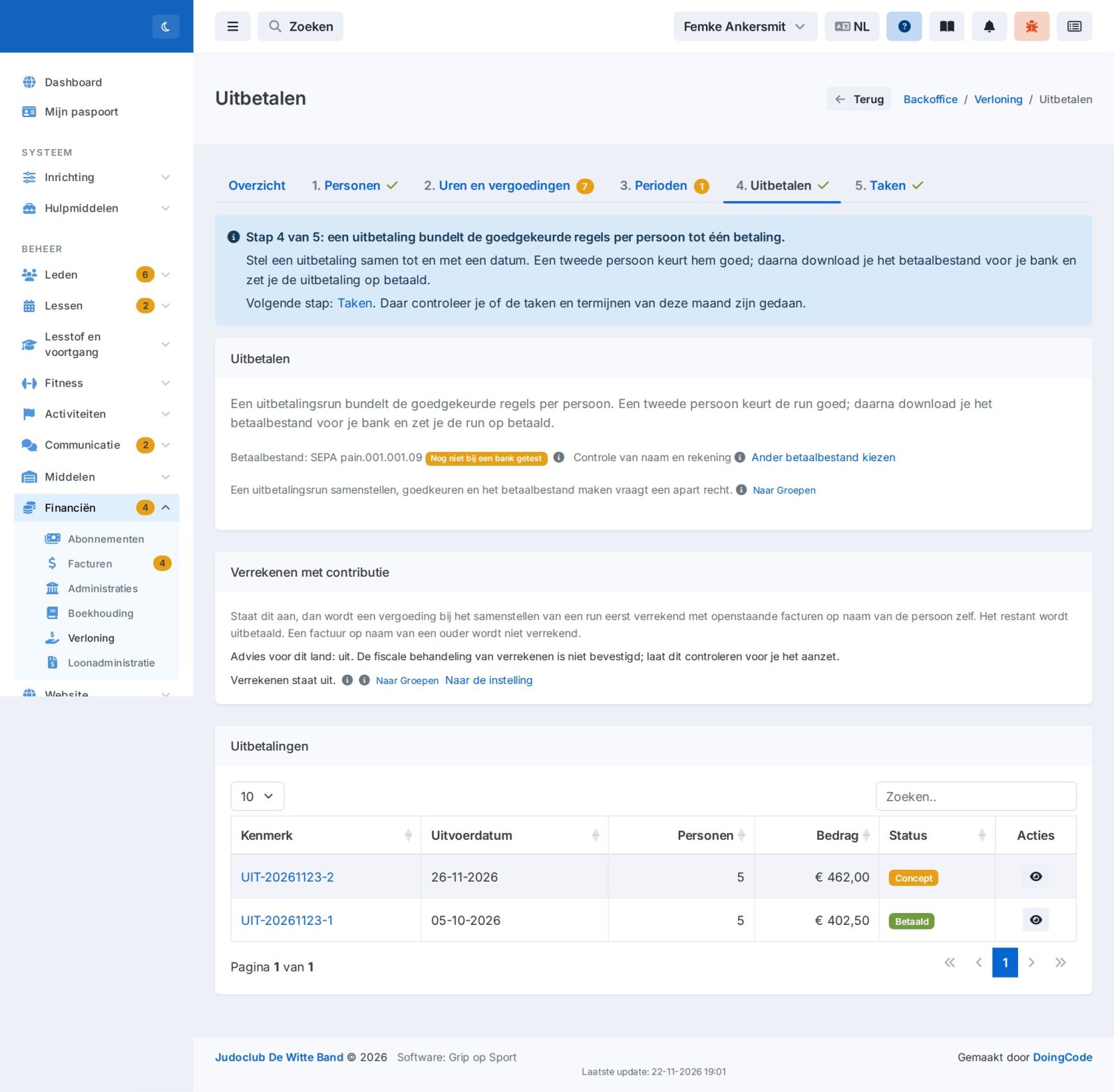
In the payout you see for each person the number of lines, the amount and the account number. Of that number you only see the last four characters, unless you have the permission to see special data.
A few things you do not see, but that matter:
- If one person has no account number, no payout is made, not even for the others. The message says per person what is missing. A daily notification warns you about this earlier.
- All amounts are calculated in cents. The line, the payout and the payment file therefore match to the cent.
- The payment file follows the format of your country. In the Netherlands that is SEPA (pain.001), in the United Kingdom a file with sort code and account number, and in Poland you can choose the Polish format.
- The payment file is stored encrypted and only created after approval.
If you want to offset an allowance against outstanding membership fees of the same person, that is possible. It is off by default, because the tax treatment is not settled in every country. If you switch it on, the invoice is not changed: the system creates a linked credit invoice. This keeps your accounts correct.
What the volunteer sees
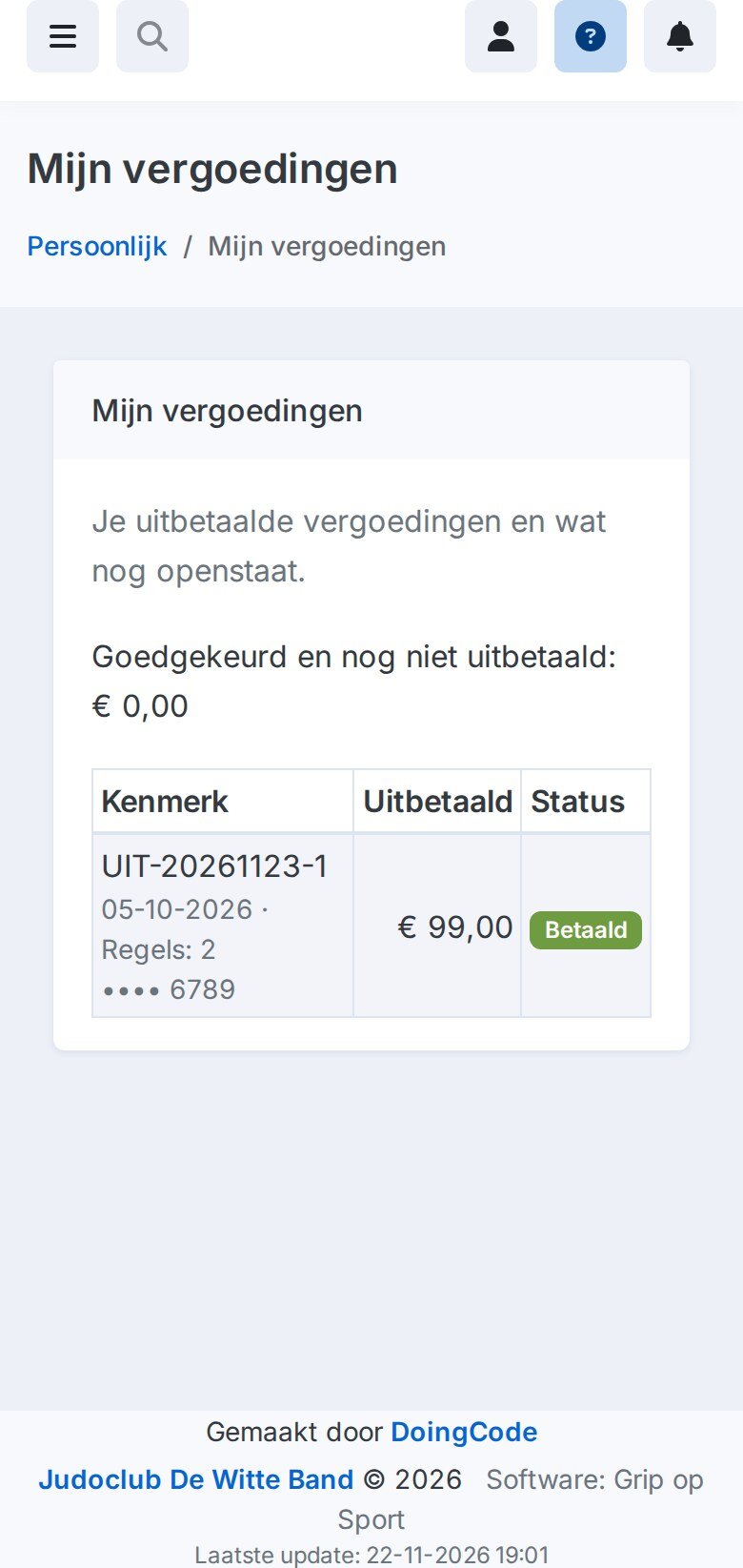
Under My allowances the trainer or volunteer sees their payouts, with reference, date, amount and status. They also see what has been approved but not yet paid. No more questions about whether last month's allowance has been transferred.
Tasks and deadlines
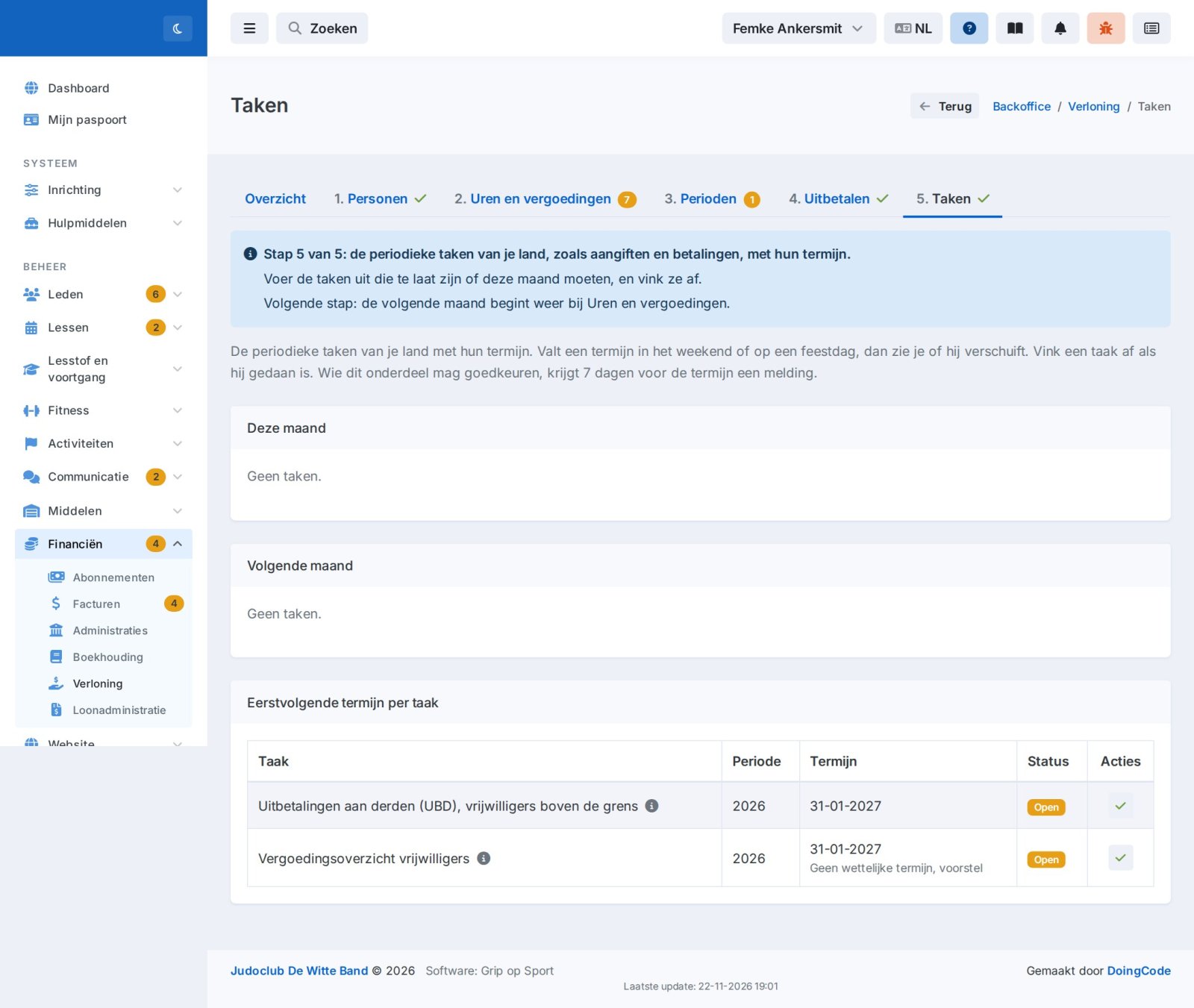
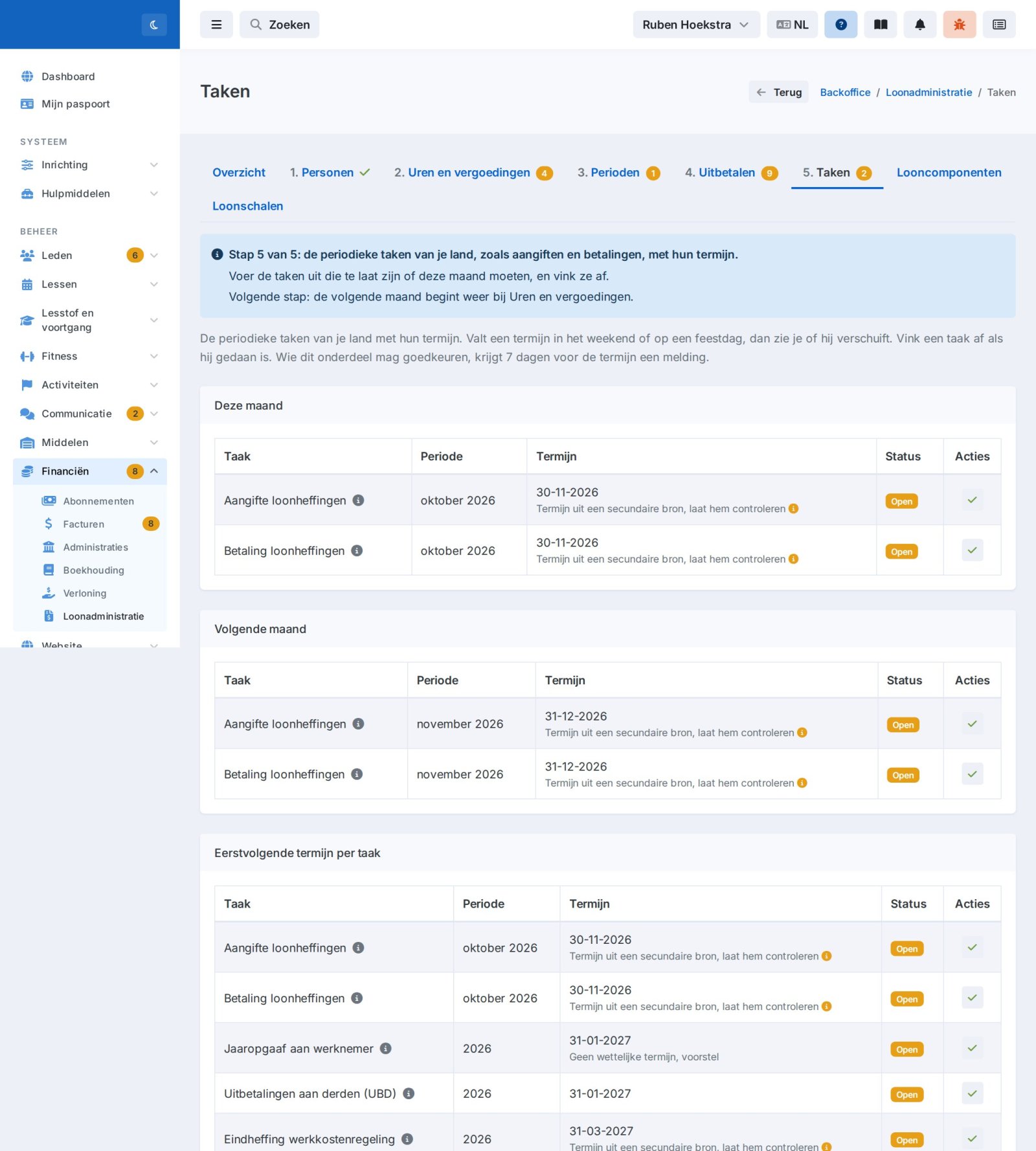
Allowances and pay come with fixed obligations, such as the yearly statement of payouts to volunteers above the limit. Under Tasks they are listed per month and per year, with their deadline. If a deadline falls on a weekend or a public holiday, it only moves if the rules of your country say so. You get a notification seven days in advance. Grip op Sport does not file the statement or return itself, but it makes sure you do not forget it.
Payroll for employees and freelancers
If your club or gym has people on a payroll, you use Payroll. The same five steps, but with the data you need for pay.
For each person you record an agreement: permanent, temporary, on-call or assignment, with probation period, hours per week, pay per hour or per month, job title and possibly scale and step. A change, such as a pay rise after a year, becomes a new version with an effective date. The old version is kept.
For a new employee there is the New starter wizard. It asks for the personal number of your country (in the Netherlands the BSN), the agreement, the pay components and the documents required at the start of employment, such as a copy of the ID and the payroll tax form. There are also wizards for a change of agreement and for an employee leaving, with a final settlement of leave and the open lines.
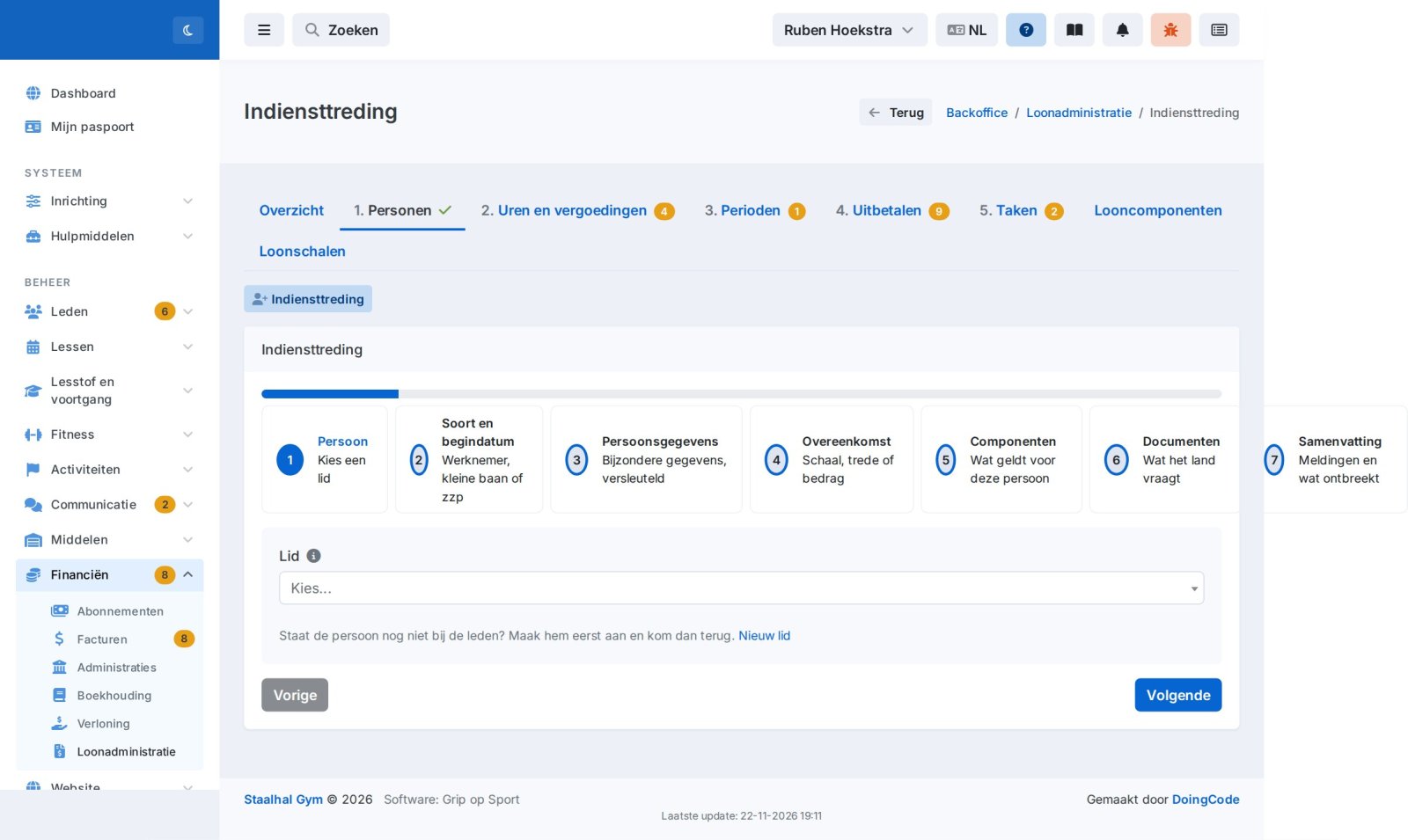
When you save an agreement, the system checks the minimum wage of your country. If you still want to save below it, for example because of a legal exception, it asks for confirmation and records that.
Pay components and ledger accounts
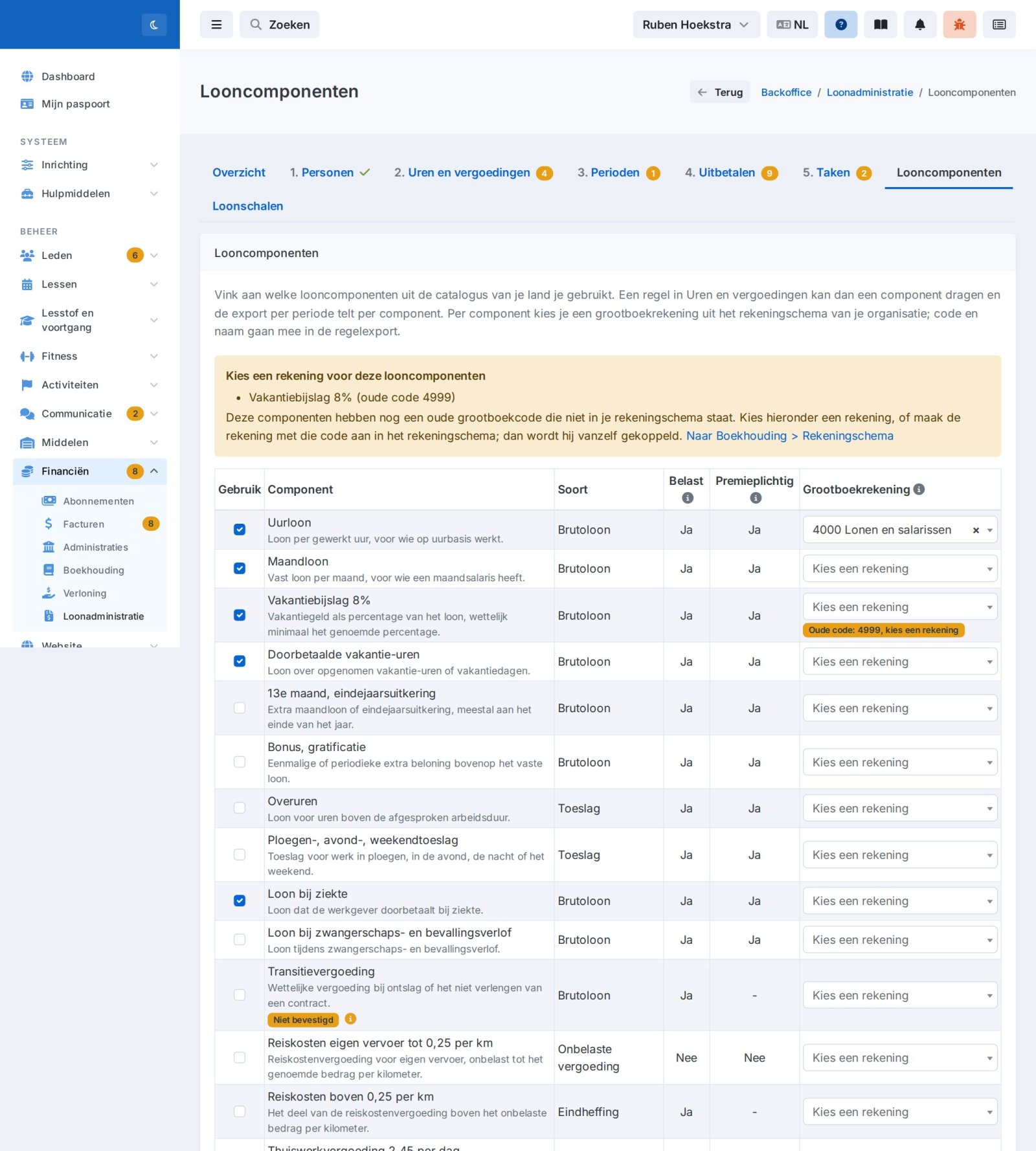
From a catalogue per country you choose which pay components apply to you: hourly pay, monthly pay, holiday allowance, overtime, supplements, travel costs and so on. For each component you link a ledger account. It is included in the export, so your payroll software can create the payroll journal. A component for which the rules of the country are not settled yet gets the label Not confirmed.
Hours, leave and sickness
Under Hours and allowances you find leave and sickness next to hours worked. For sickness you only record the date and the duration. A reason or diagnosis can deliberately not be entered. The system calculates the statutory minimum leave pro rata from the hours per week and the days in service. Four eyes apply here too: whoever enters does not approve.
Exporting to your payroll software
After closing a month you export the changes: per person the current agreement and the totals per type and per component, only what has been approved. Your accountancy firm or payroll software calculates the pay from that. Special data, such as a BSN, is never included in an export.
Under Tasks, for employees you find the deadlines for filing and paying payroll tax, the annual statement and the notifications at the start and end of employment.
My payslips
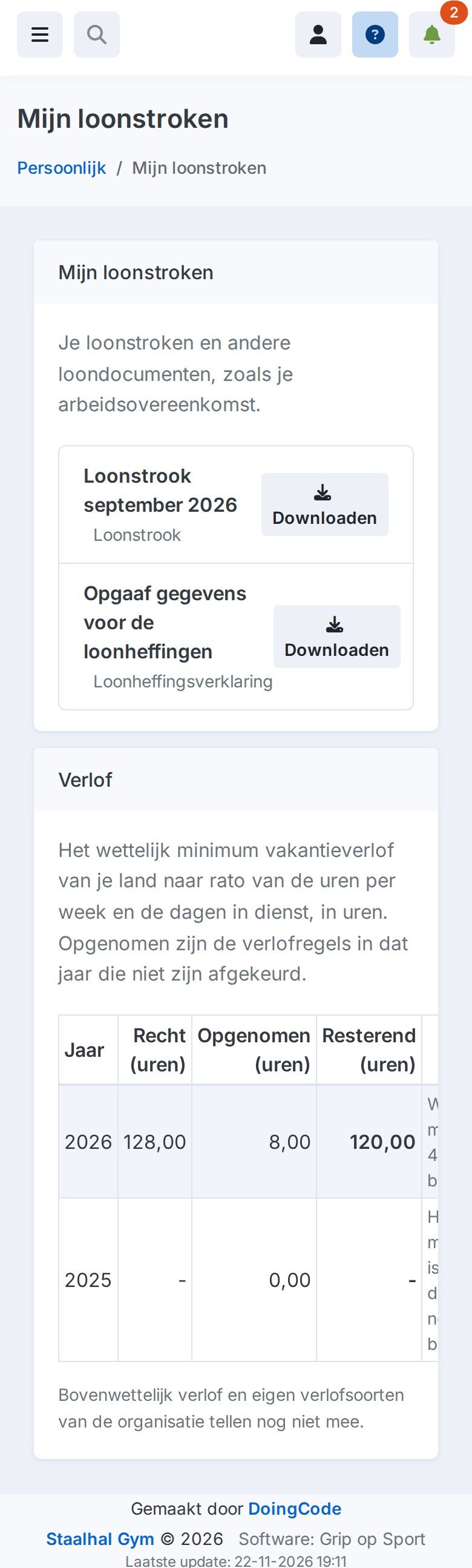
The payroll administration puts the payslip from the payroll software with the employee. They find it under My payslips, together with other documents such as the payroll tax form and the employment agreement, and their leave balance: entitlement, taken and remaining.
In the members app the payslips are under My club > My payslips. The app always asks for the PIN code for this, and a payslip is never stored offline on the phone.
Twelve countries, each with its own rules
Grip op Sport knows the rules of twelve countries: the Netherlands, Belgium, Germany, Austria, France, the United Kingdom, Ireland, Spain, Italy, Poland, Turkey and Ukraine. For each country there is a country pack with the schemes and their limits, the pay components, the minimum wage, statutory leave, public holidays, mileage rates, deadlines, retention periods and the format of the payment file. Belgian volunteer work (verenigingswerk), the German Übungsleiterpauschale and the French franchise are all in there.

Every value has a source and a date, and an origin: official, from a secondary source or expected. A value for next year that is not official yet is shown as expected and only used once it is settled. If the law changes, we adjust the country pack for all clubs at once, without a new version of the software. Every change becomes a new version with an effective date and a source. To keep it up to date, a monthly research round along the official sources has been built, in which an AI makes proposals. Such a proposal never changes a value by itself: a person adopts it or rejects it.
To be honest: the Netherlands is our first country. For the other countries, we do an acceptance test together with the first club in that country. In Germany, payroll software has to be certified, even if you only export. The system makes that clear up front.
Privacy and security
Pay data is sensitive. That is why stricter rules apply than in the rest of the software:
- There are three fixed roles: Allowances, Payroll administration and External administrator. The external administrator can only read and export, handy for your bookkeeper or accountancy firm.
- Approving, paying out and seeing special data are separate permissions. Whoever has such a permission must log in with two-step verification.
- Personal numbers, account numbers and pay documents are stored encrypted. Without the permission for special data you only see the last four characters of an account.
- An employee can never change their own rate or pay.
- If you are not allowed to do something, the screen says which permission you need and who arranges it.
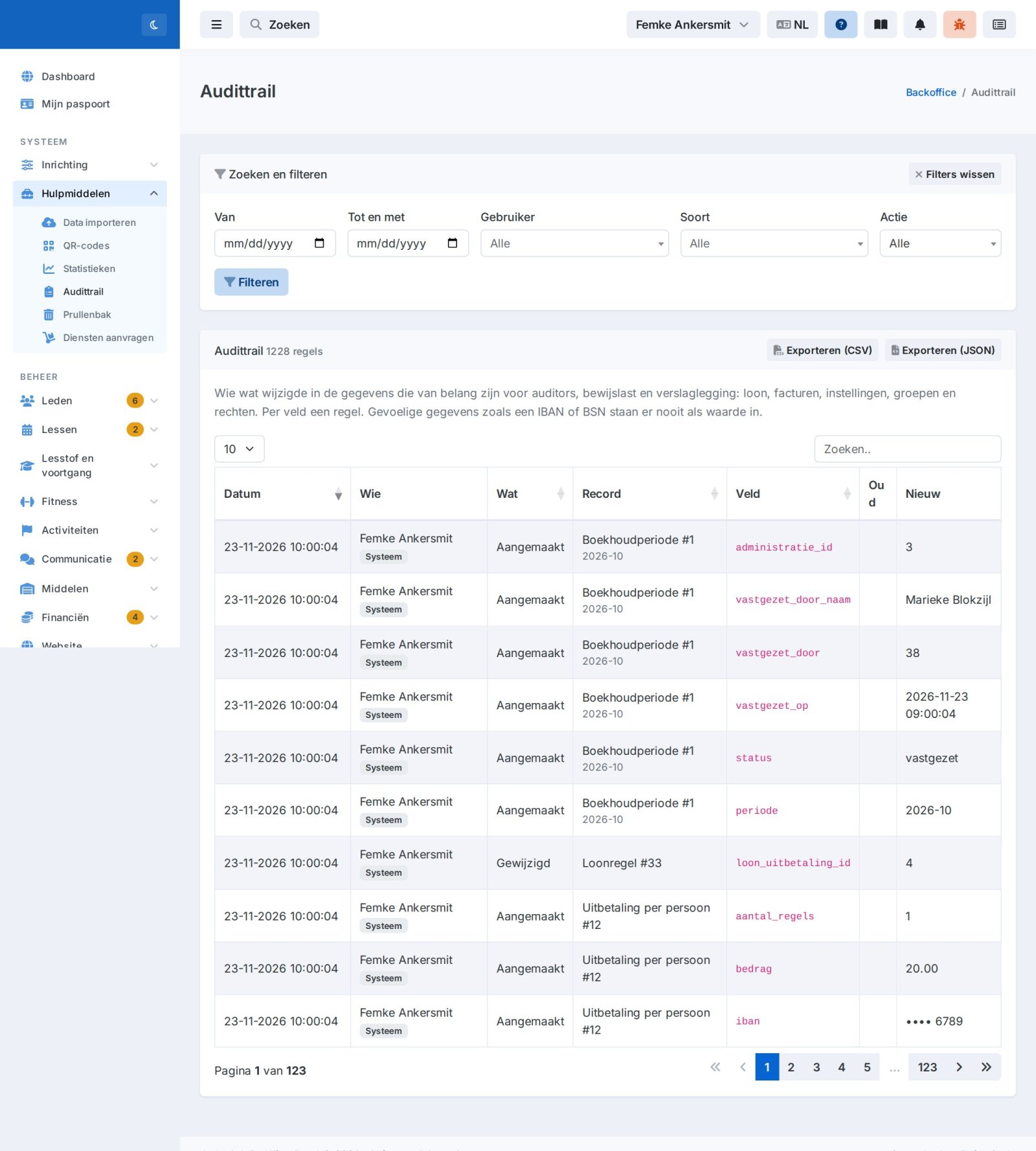
Every change goes into the Audit trail: per field who changed it, when, the old and the new value and where the change came from. Account numbers and BSNs are masked there. The audit trail cannot be changed, not even by an administrator, and you can filter and export it for your audit committee or accountant.
Explanation on every screen
Pay is a profession of its own, and a treasurer is usually a volunteer. That is why every screen has an explanation behind the question mark at the top. It says what you see, what each button does, when a button is disabled and what the terms mean. Every chapter ends with what is possible in the members app and what is not. The explanation is available in eleven languages.
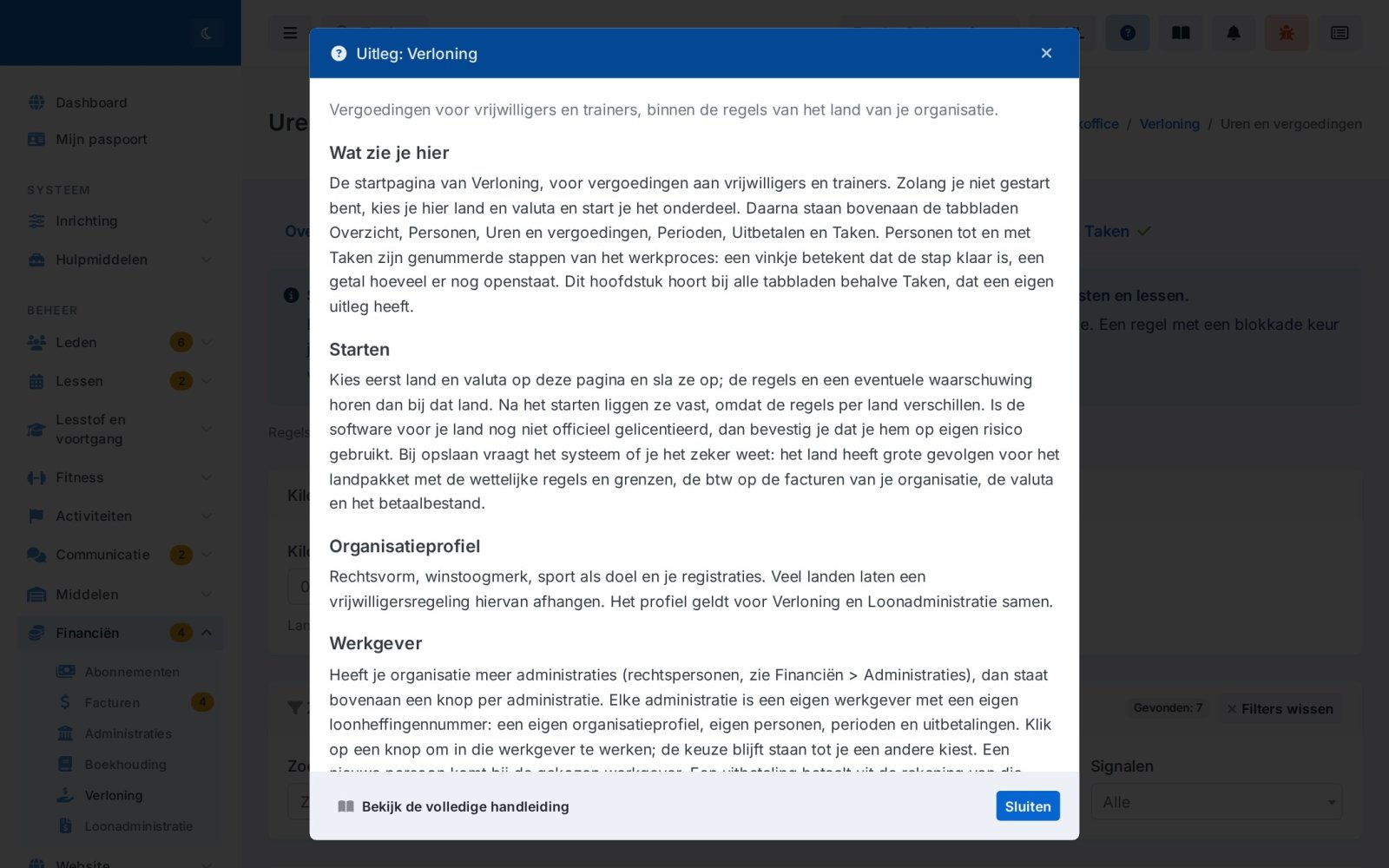
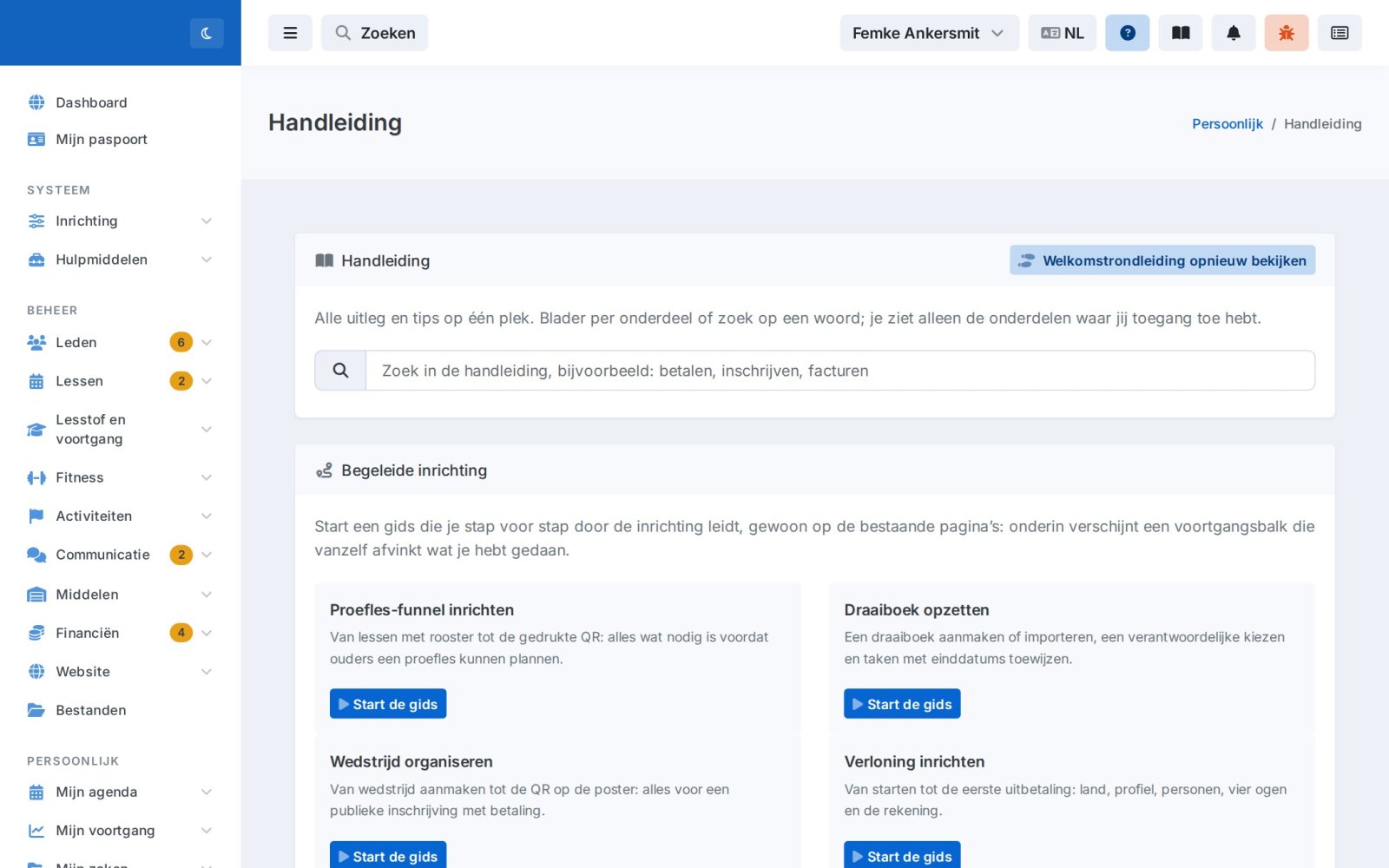
All explanations together form the manual, which you can search by keyword. With the guided setup you go through a module step by step the first time. Next to a number or limit there is a small (i) with the source, so you can check where a limit comes from.
API and MCP: connecting, read only
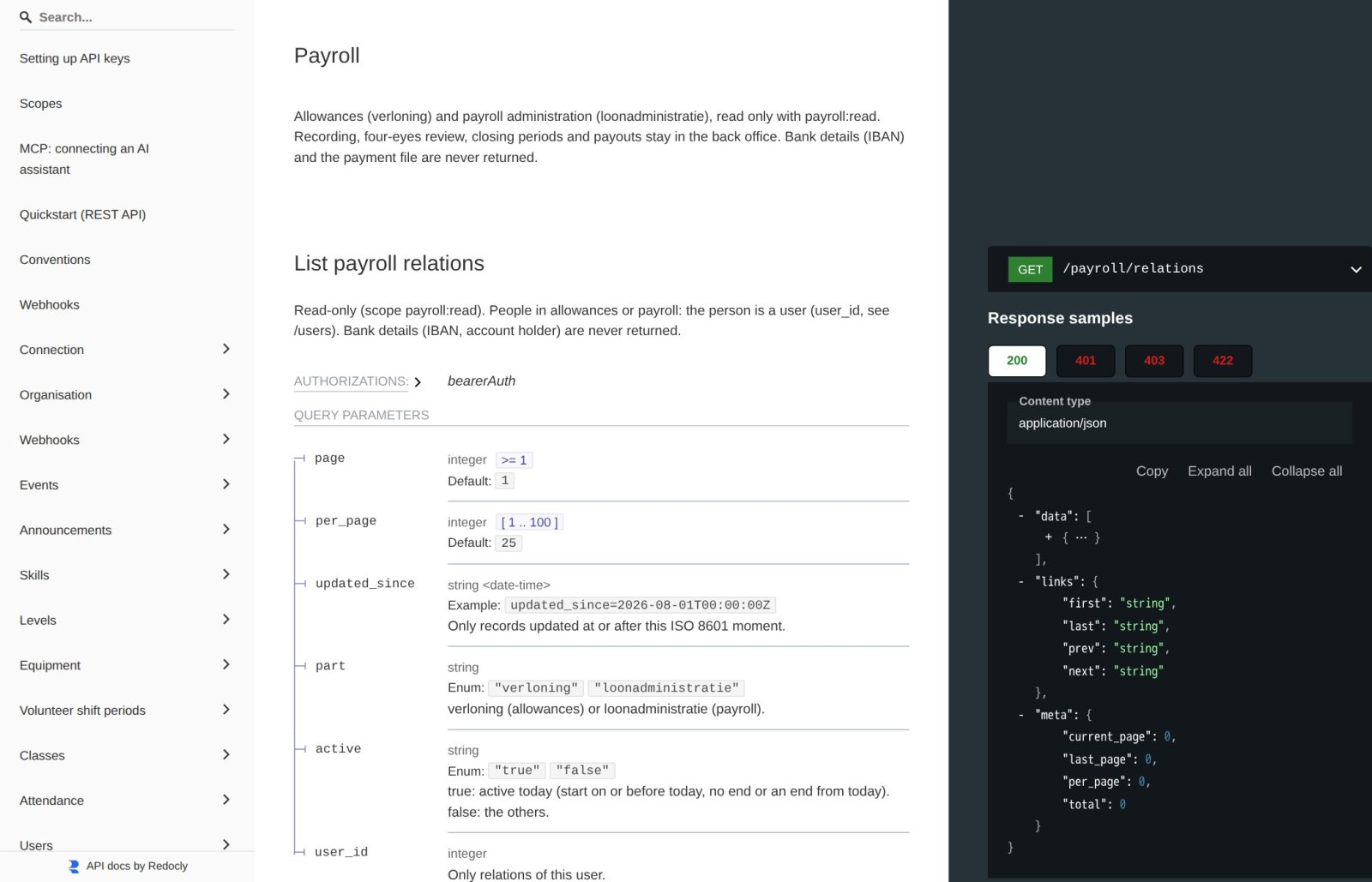
If you want the data in your own reporting or another package, you can use the public API. With the scope payroll:read you read people, lines with their limit signals, periods and payouts. The API is documented according to OpenAPI, with examples per endpoint.
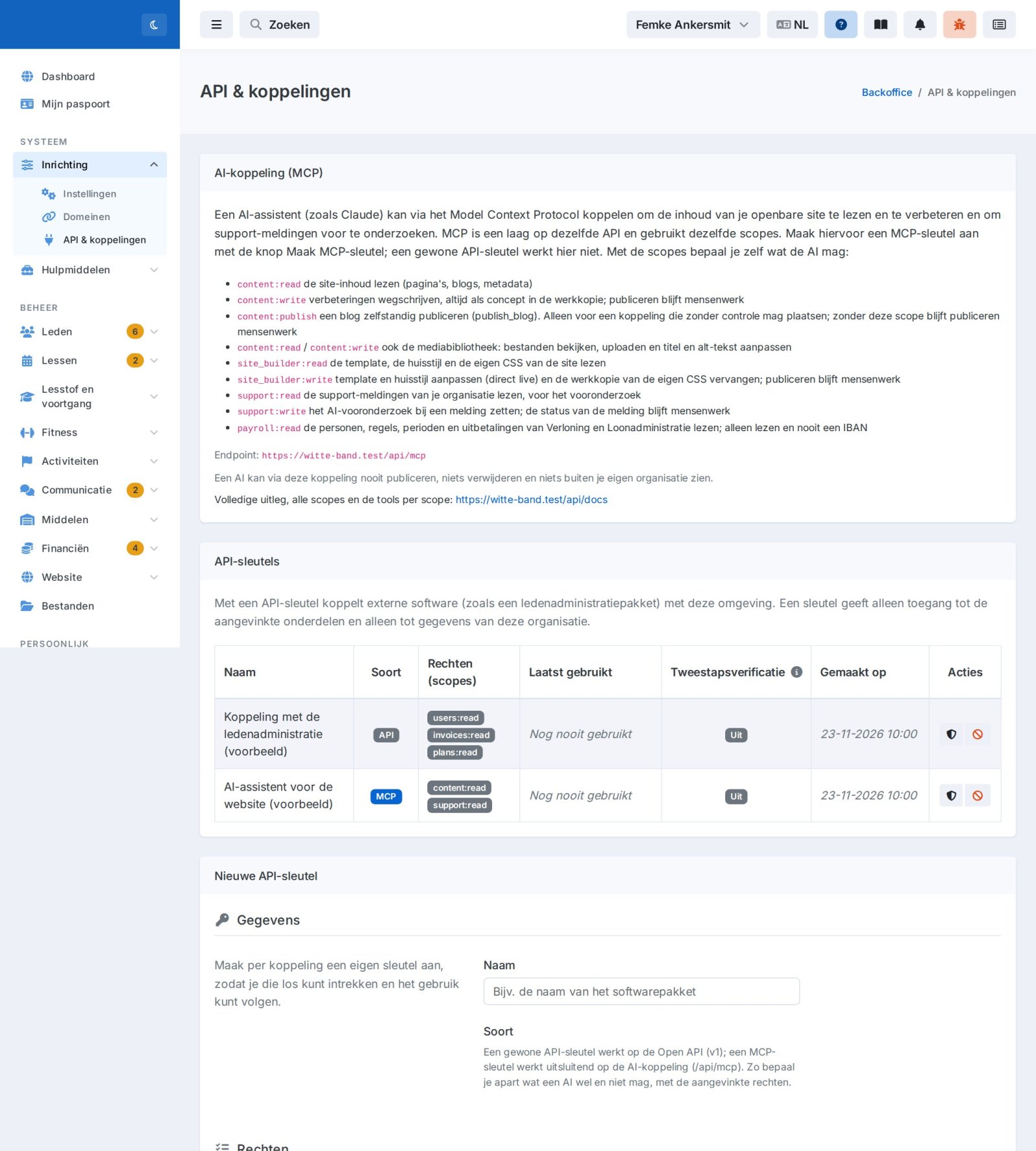
There is also an MCP connection, the protocol with which an AI assistant such as Claude talks to software. With an MCP key with the same scope, an assistant can answer questions like "which volunteers are close to their monthly limit?" or "what is still open for this month's payout?".
Both connections are deliberately read only. Recording, approving, closing and paying out happen in the admin, with four eyes. An account number or payment file never leaves through the API or MCP, not even masked. You create every key yourself under API & integrations, with exactly the permissions it needs.
And the bookkeeping?
If bookkeeping is switched on, Allowances posts along automatically: an approved allowance as a cost, a paid payout from the bank. Payroll does not post by itself. Your payroll software does that with the ledger accounts from the export. I will write a separate blog about the bookkeeping itself next week.
What it gives a club
- No more spreadsheet: all hours, allowances and payouts in one place.
- No surprises afterwards: the limits of your country are watched while you type.
- Nobody pays out alone: four eyes for approving, paying out and cancelling.
- One payment file for the bank instead of dozens of separate transfers.
- Trainers and volunteers submit their own and see for themselves what has been paid.
- An audit committee that sees in the audit trail exactly who did what.